

Sign in and two-step verification
InSecLab Papers has no open sign-up: you only get an account when you are invited to the lab or an admin creates one for you. This page goes from your first sign-in to the Overview page.
Sign in
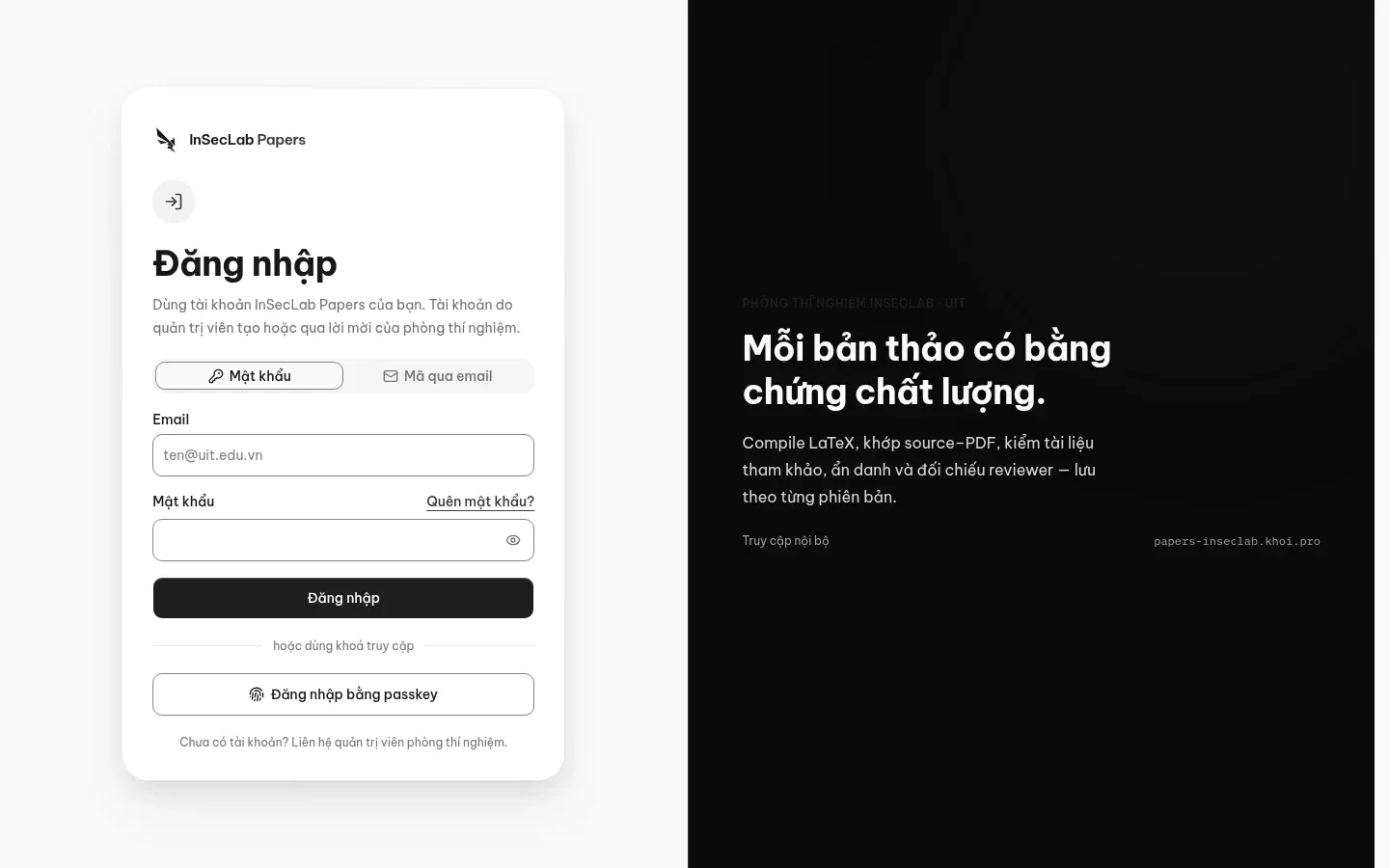
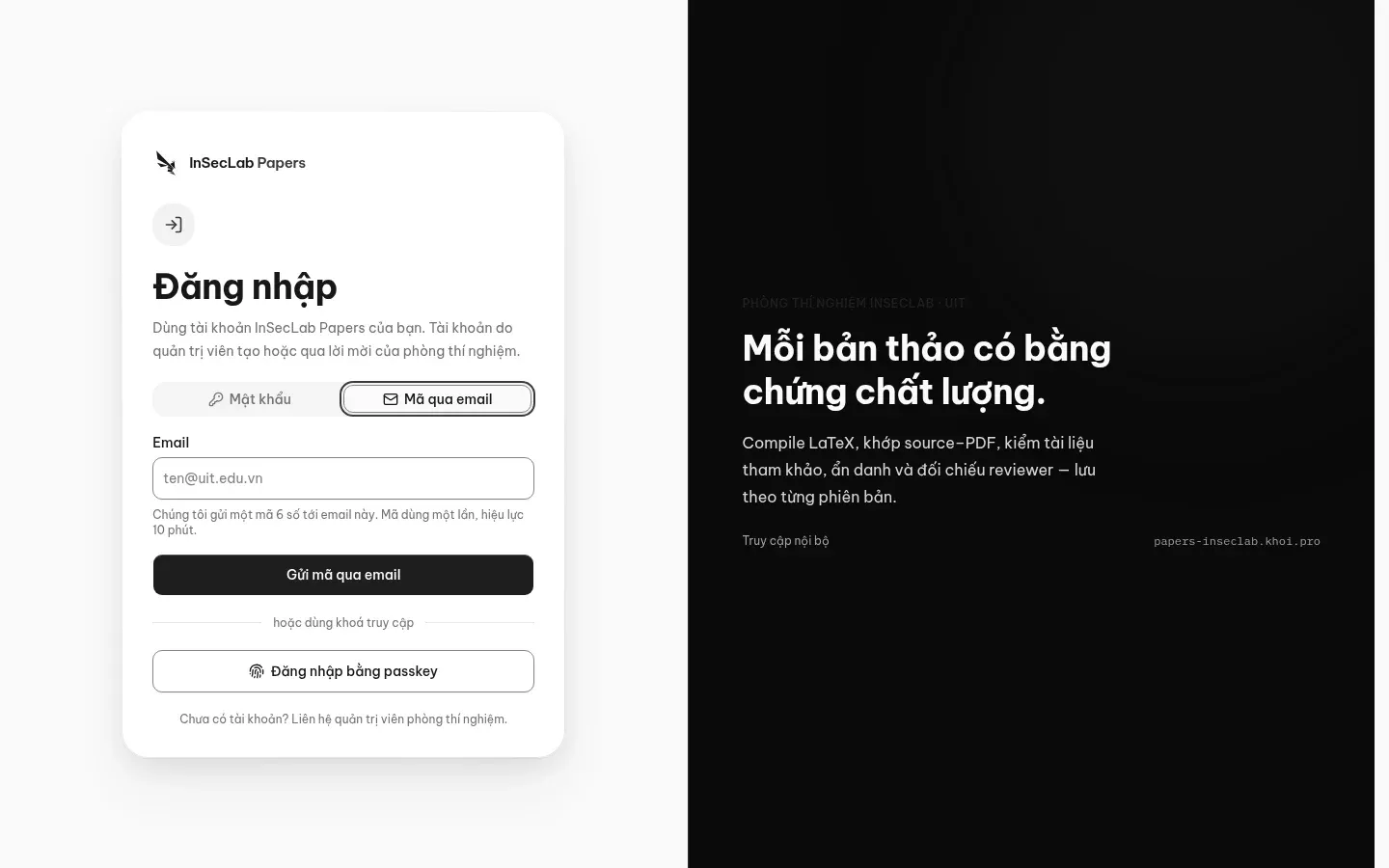
Section titled “Sign in”Open papers-inseclab.khoi.pro/login. There are three ways:
- Mật khẩu (Password): enter your email and password, then click Đăng nhập (Sign in).
- Mã qua email (Email code): choose the Mã qua email tab, enter your email, get the 6-digit code from your inbox and enter it. This works even if you have not set a password yet.
- Passkey: click Đăng nhập bằng passkey (Sign in with a passkey) if you have created a passkey on this device.
Two-step verification (2FA)
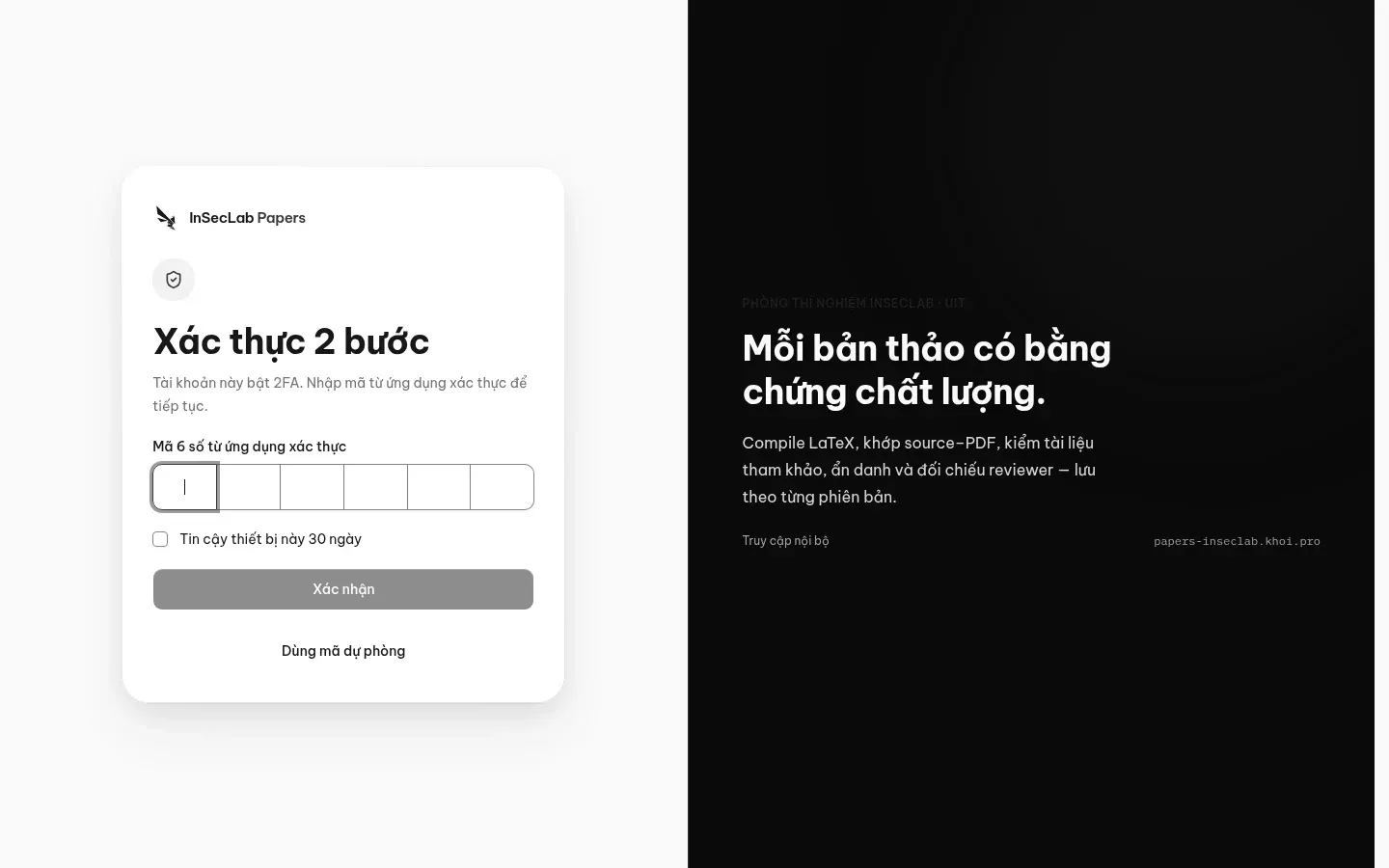
Section titled “Two-step verification (2FA)”If your account has 2FA turned on, after the password you land on the Xác thực 2 bước (Two-step verification) page: enter the 6-digit code from your authenticator app (Google Authenticator, 1Password…) and click Xác nhận (Confirm). Lost your phone? Click Dùng mã dự phòng (Use a backup code). Tick Tin cậy thiết bị này 30 ngày (Trust this device for 30 days) on a personal computer so you do not have to enter a code every time.
| Role | 2FA |
|---|---|
Lab head (lab_head) |
Required: the app sends you to the 2FA setup page until it is turned on |
| Researcher | Optional but recommended; the CLI and the device approval page need a session that has passed 2FA |
To turn on 2FA: open the setup page, scan the QR code with your authenticator app, save the backup codes somewhere safe, then enter the 6-digit code to confirm.
Accept a lab invitation
Section titled “Accept a lab invitation”- Open the link in the invitation email (it looks like
/invite/<id>). - Sign in; if you have no password yet, use Mã qua email (Email code).
- Accept the invitation. Invitations expire after 48 hours; the lab head can resend one from the Members page.
Forgotten or missing password
Section titled “Forgotten or missing password”Click Quên mật khẩu? (Forgot password?) on the sign-in page: the system sends you a one-time code to set a new password. Accounts created in advance for lab members set their first password the same way.
Change display name and appearance
Section titled “Change display name and appearance”Go to Cài đặt → Hồ sơ cá nhân (Settings → Profile) to change your display name (shown on comments, the audit log and emails). Your email is managed by the admin; you cannot change it yourself. The Giao diện (Appearance) section picks light, dark or system mode and the màu nhấn (accent colour); the choice is saved in the browser you are using. See also Settings.
Next: Getting around the interface.
dang dat