

Work page
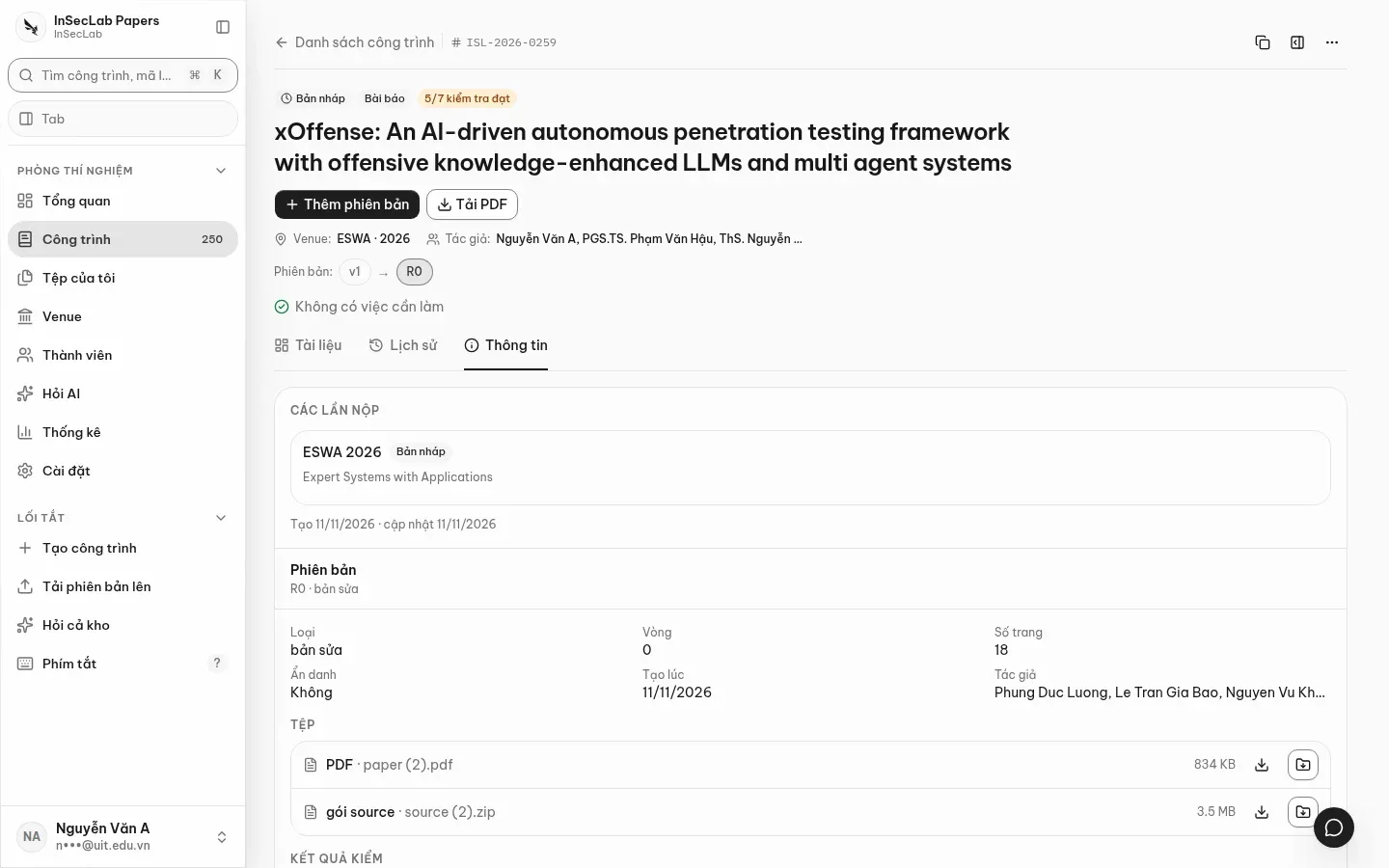
Each work has its own page (/app/works/<id>) that gathers everything about the paper: identity, versions, documents, check results, comments and history. Click a row in the list, the command palette or the Overview to open it; the Sao chép liên kết (Copy link) button at the top right gives you a link to send to colleagues.
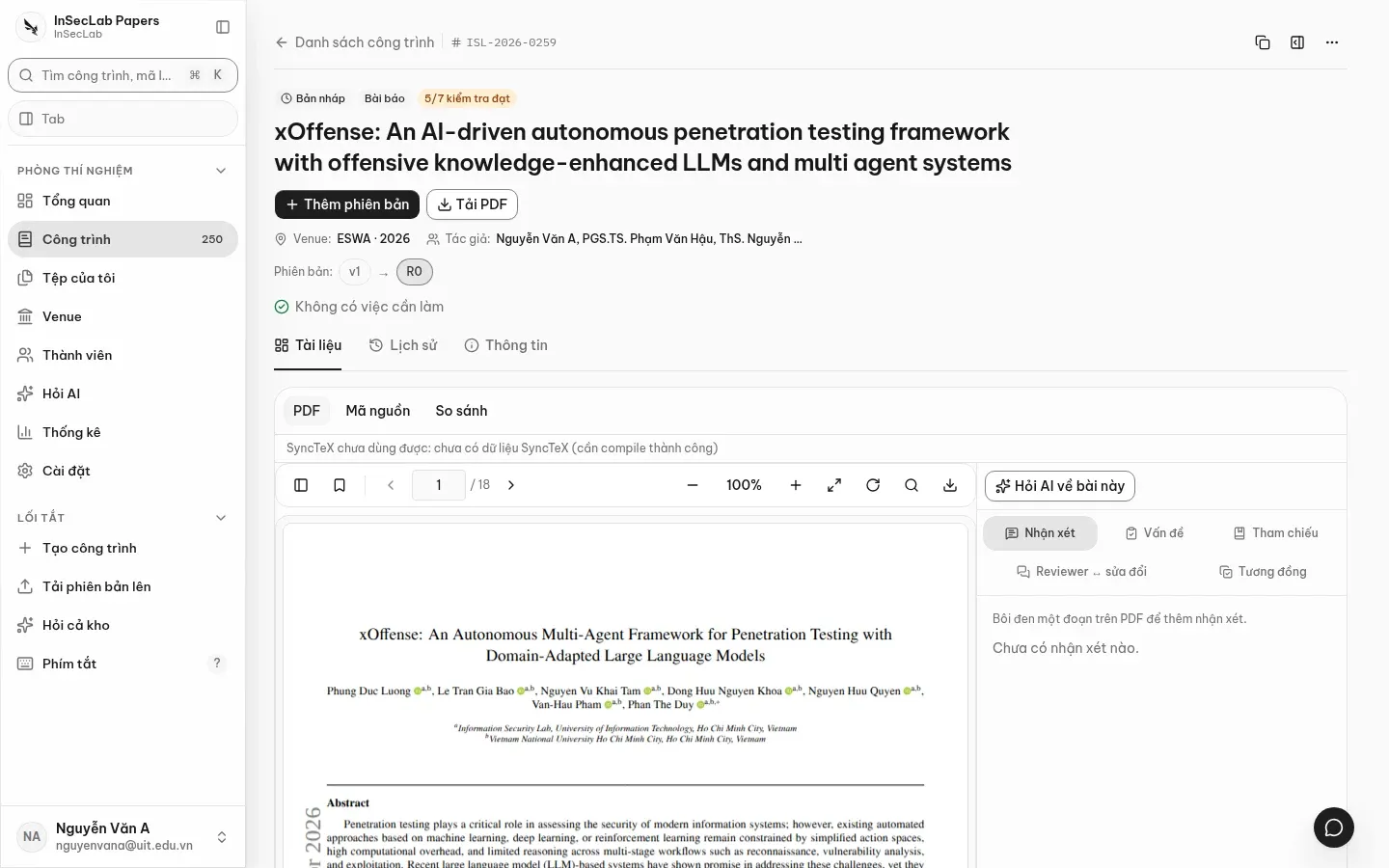
Header
Section titled “Header”- Submission status badge, work type and check summary (for example 5/7 kiểm tra đạt, 5 of 7 checks passed).
- Title, Venue (with year), Tác giả (Authors).
- Phiên bản (Versions): chips
v1 → R0 → …; click a chip to switch version (?v=<id>). - Cần làm (To do): open items on the work (unresolved comments, failing checks…). Click an item to open the related panel.
- The Thêm phiên bản (Add version) and Tải PDF (Download PDF) buttons, the Thao tác khác (More actions) menu and the Hướng dẫn (Guide) button.
Documents tab
Section titled “Documents tab”On the left, pick the PDF / Mã nguồn / So sánh (PDF / Source / Compare) mode; on the right is the inspector with Nhận xét · Vấn đề · Tham chiếu · Reviewer ↔ sửa đổi · Tương đồng (Comments · Issues · References · Reviewer ↔ changes · Similarity). Below 1280px the inspector becomes a bottom sheet. The parameter ?inspector=annotations|issues|refs|reviews|similarity opens a panel directly.
A full viewer: outline, page navigation, zoom in/out, fit width, fit page, rotate, text search, download. Select a passage to comment on it. The Hỏi AI về bài này (Ask AI about this paper) button opens Ask AI scoped to the paper you are viewing.
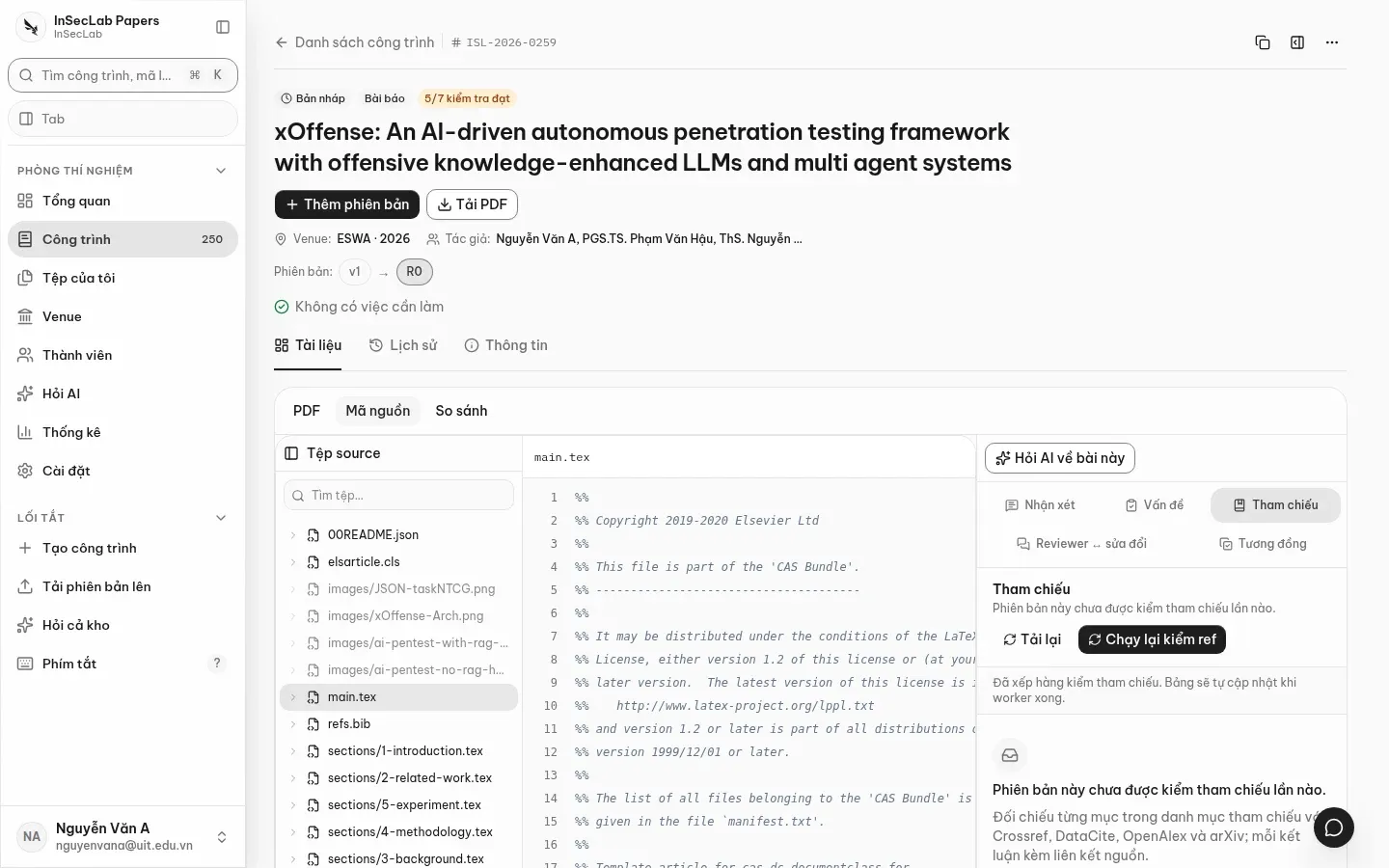
Source
Section titled “Source”A file tree on the left (with a file search box), syntax-highlighted .tex/.bib content, read-only. Check findings (for example "undefined reference") jump to the right file and line. Needs a version that has been checked, because the source is stored by that check run.
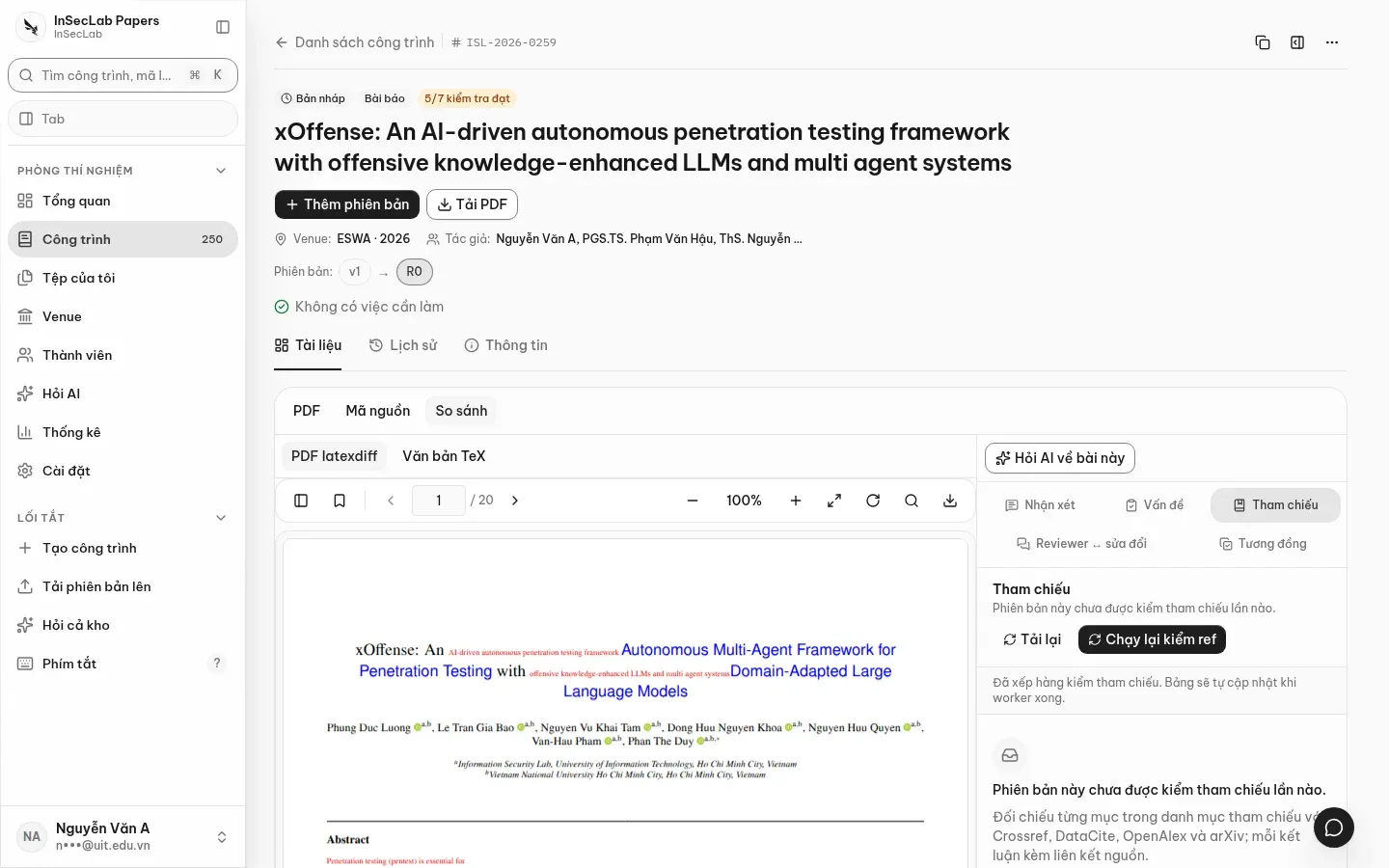
Compare
Section titled “Compare”Compared with the previous version: PDF latexdiff (added and removed text highlighted) or Văn bản TeX (TeX text). Needs a check run that has a previous version; if there is none, the page says so.
SyncTeX: jump between PDF and source
Section titled “SyncTeX: jump between PDF and source”Double-click in the PDF to go to the source line; from the source, click Xem trong PDF (Show in PDF) to go to that spot in the PDF. The feature is only on when it can be trusted: the compile produced SyncTeX data and the PDF you submitted matches the PDF compiled from source (the Khớp source ↔ PDF nộp (Source ↔ submitted PDF match) check passes). Otherwise the bar above the PDF states why, for example "SyncTeX chưa dùng được: chưa có dữ liệu SyncTeX (cần compile thành công)" (SyncTeX unavailable: no SyncTeX data yet, a successful compile is needed).
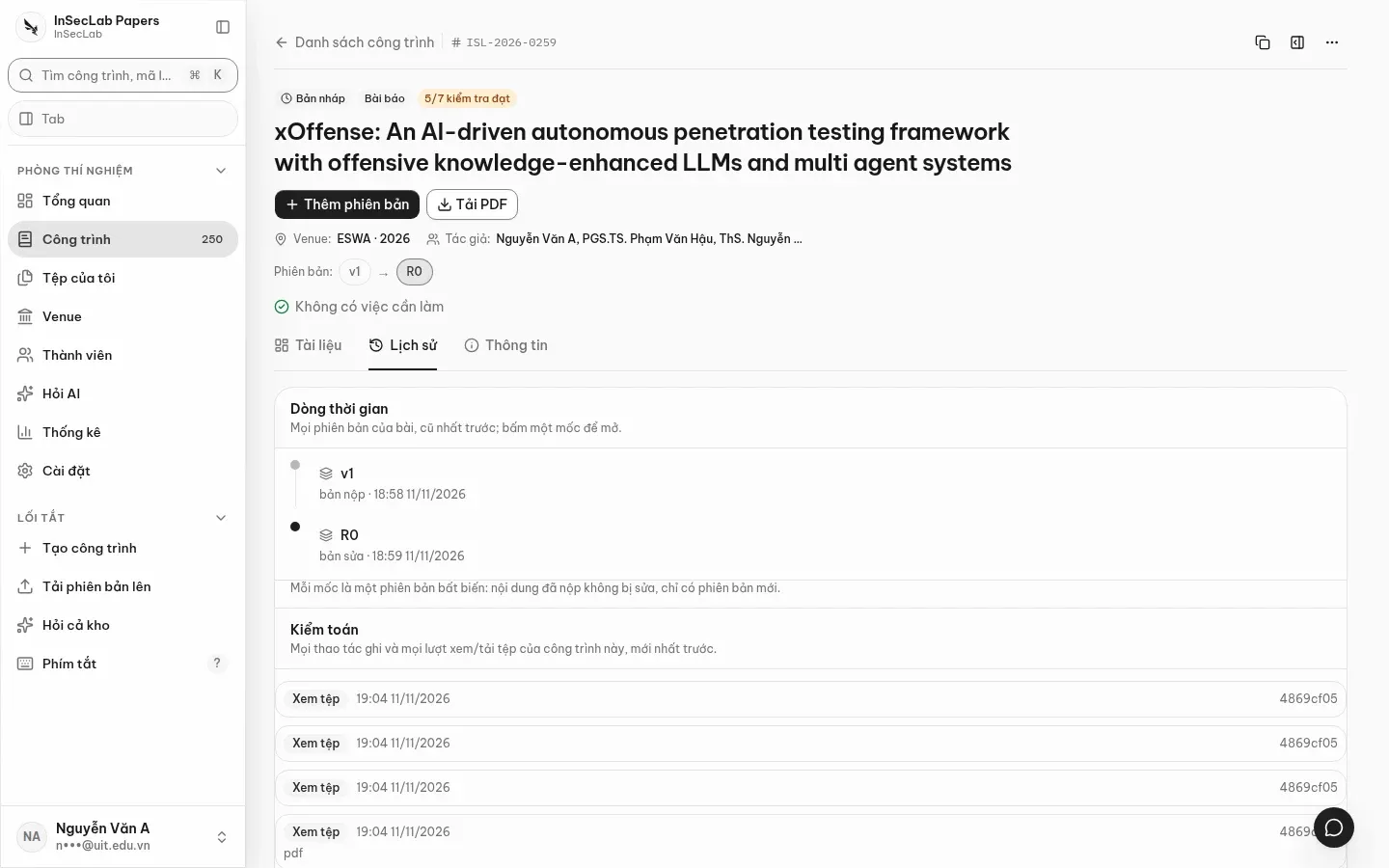
History tab
Section titled “History tab”A timeline of every version, oldest first, merged with the activity log. Click a point to open that version.
Info tab
Section titled “Info tab”Submissions (venue, deadline, decision, DOI, publication, citations), the files of each version (the Lưu vào Tệp của tôi (Save to My files) button copies a file to your own storage), and the Overleaf section if the lab has the integration on.
Overleaf (optional)
Section titled “Overleaf (optional)”When the Info tab has an Overleaf section: paste the link of the paper's Overleaf project, then use chốt phiên bản (snapshot a version): choose the type and label, the system pulls the source from Overleaf, creates a new immutable version and runs the checks as for an upload. Snapshotting the same commit again does not create a duplicate version. People invited to the project may need to click "Join" once in Overleaf.
Immutable versions, no approval step
Section titled “Immutable versions, no approval step”This repository only stores: nobody approves versions. To change something, add a new version. The submission status (submitted, under_review, accepted, camera_ready…) is updated by whoever is responsible, for example by dragging the card in the kanban.