

Getting around the interface
The app has no top header: all navigation lives in the left sidebar. This page covers the sidebar, the command palette, the tabbed work window and the keyboard shortcuts so you can move quickly.
Sidebar
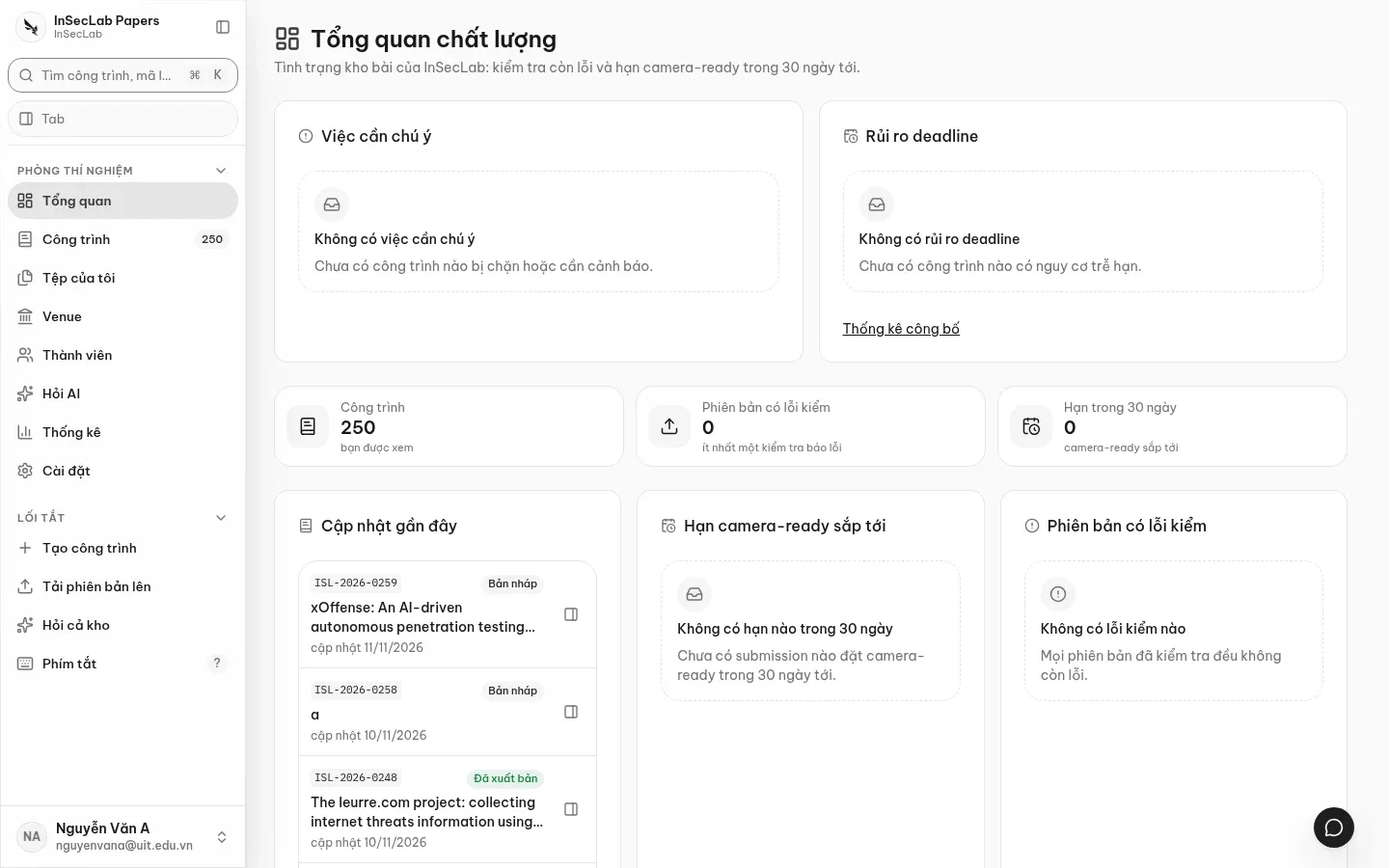
Section titled “Sidebar”From top to bottom: the ⌘K search box, the Tab button (opens the work window, with the number of open tabs), the Phòng thí nghiệm (Lab) group (Tổng quan/Overview, Công trình/Works, Tệp của tôi/My files, Venue, Thành viên/Members, Hỏi AI/Ask AI, Thống kê/Statistics, Cài đặt/Settings), the Lối tắt (Shortcuts) group (Tạo công trình/Create work, Tải phiên bản lên/Upload version, Hỏi cả kho/Ask the whole repository, Phím tắt/Keyboard shortcuts, Hướng dẫn sử dụng/User guide) and the account menu at the bottom.
- Items only appear when your role can open them: researchers do not see Thống kê (Statistics) or Cài đặt (Settings).
- The account menu has Settings, Appearance, Keyboard shortcuts and Sign out; you can switch light/dark and the màu nhấn (accent colour) right there.
- From 1280px wide: full sidebar, collapsible to an icon rail (
Mor⌘B). From 768 to 1279px: icon rail with tooltips.
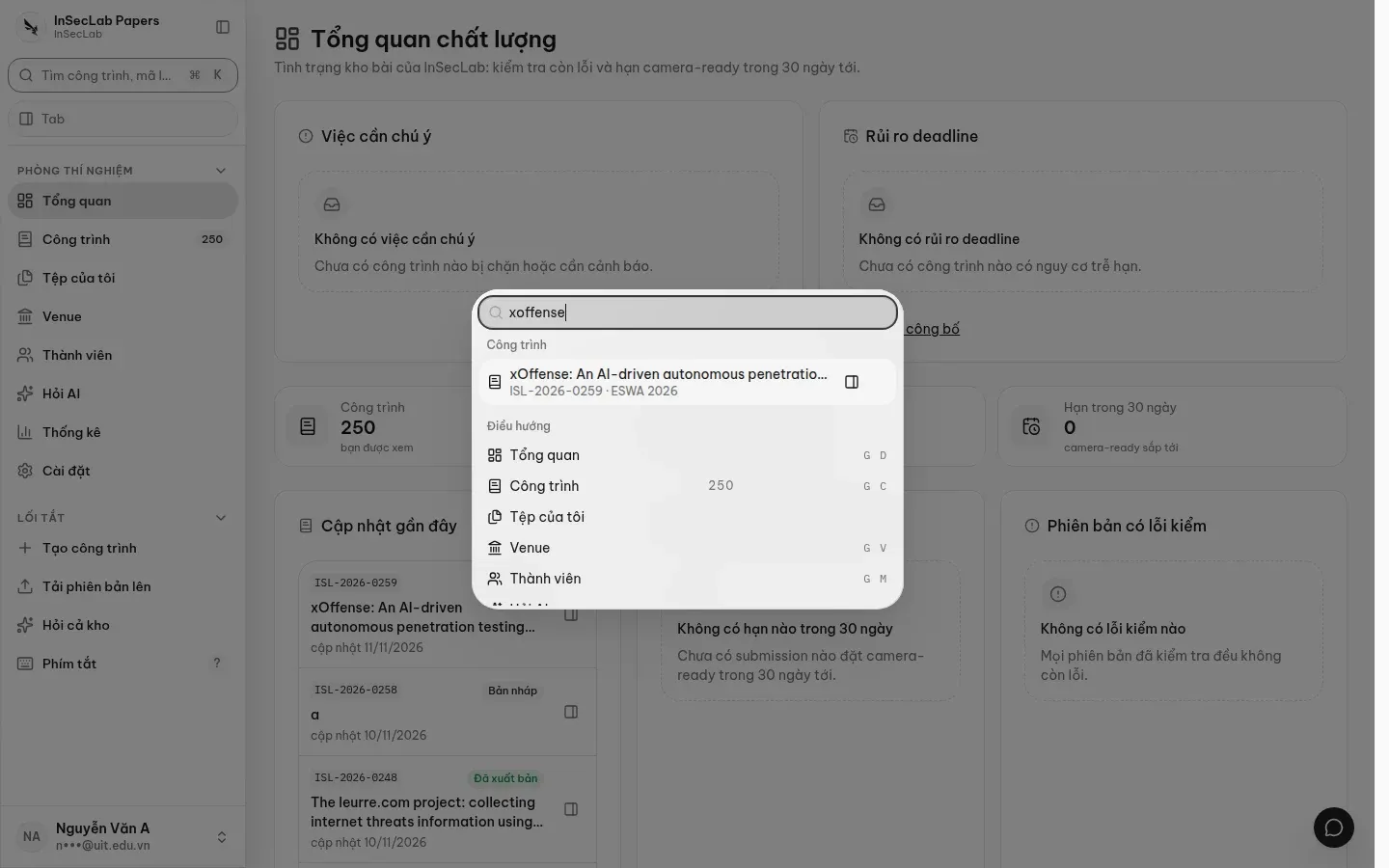
Command palette ⌘K
Section titled “Command palette ⌘K”Press ⌘K (macOS) or Ctrl+K, or /, to open the command palette. Type a title, an ISL-… code or a page name; search ignores Vietnamese diacritics, so typing hau finds "Phạm Văn Hậu". Enter opens the work page; the button on the right of a row opens the work in a tab. The palette also finds files in My files.
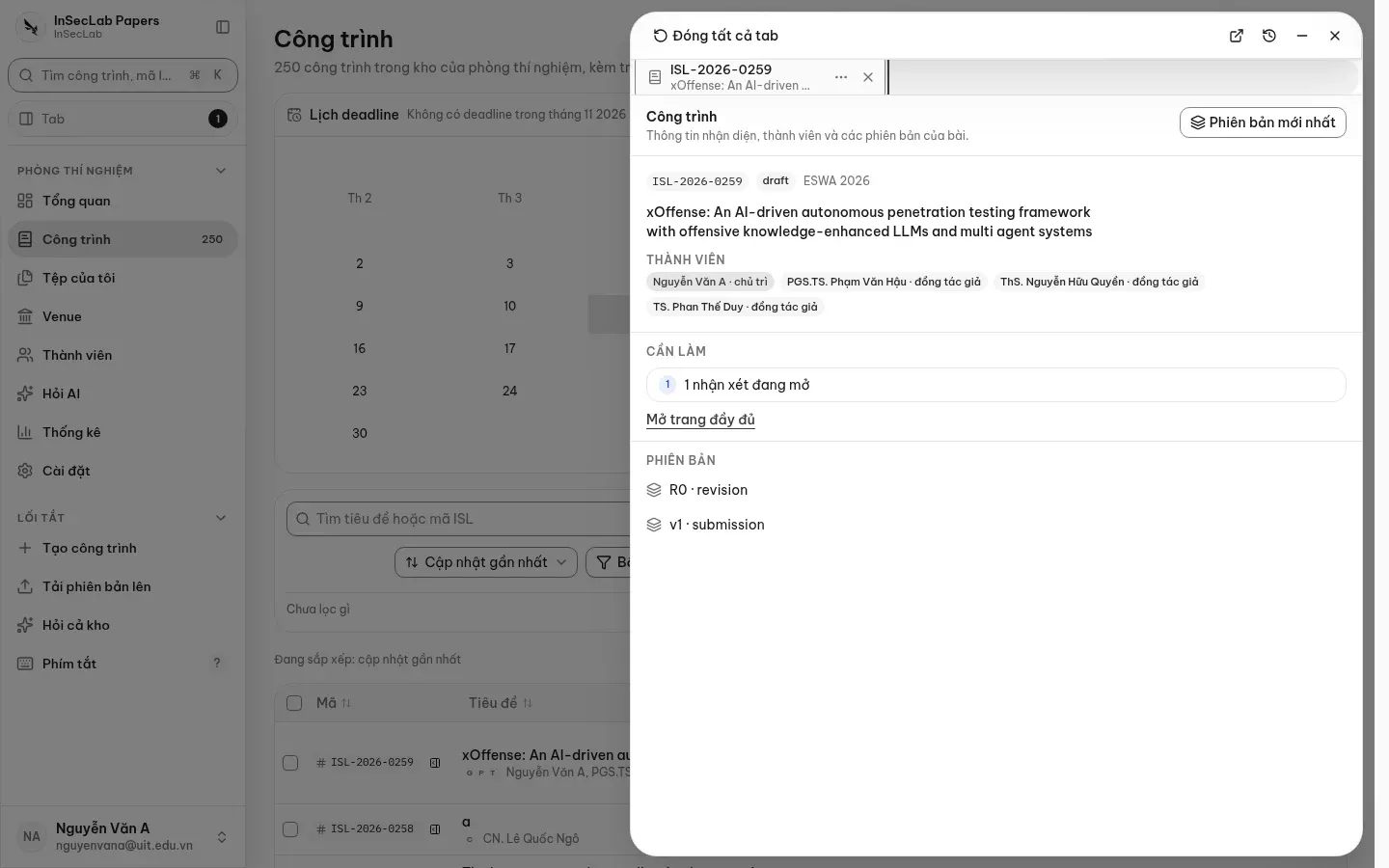
Work window (tab drawer)
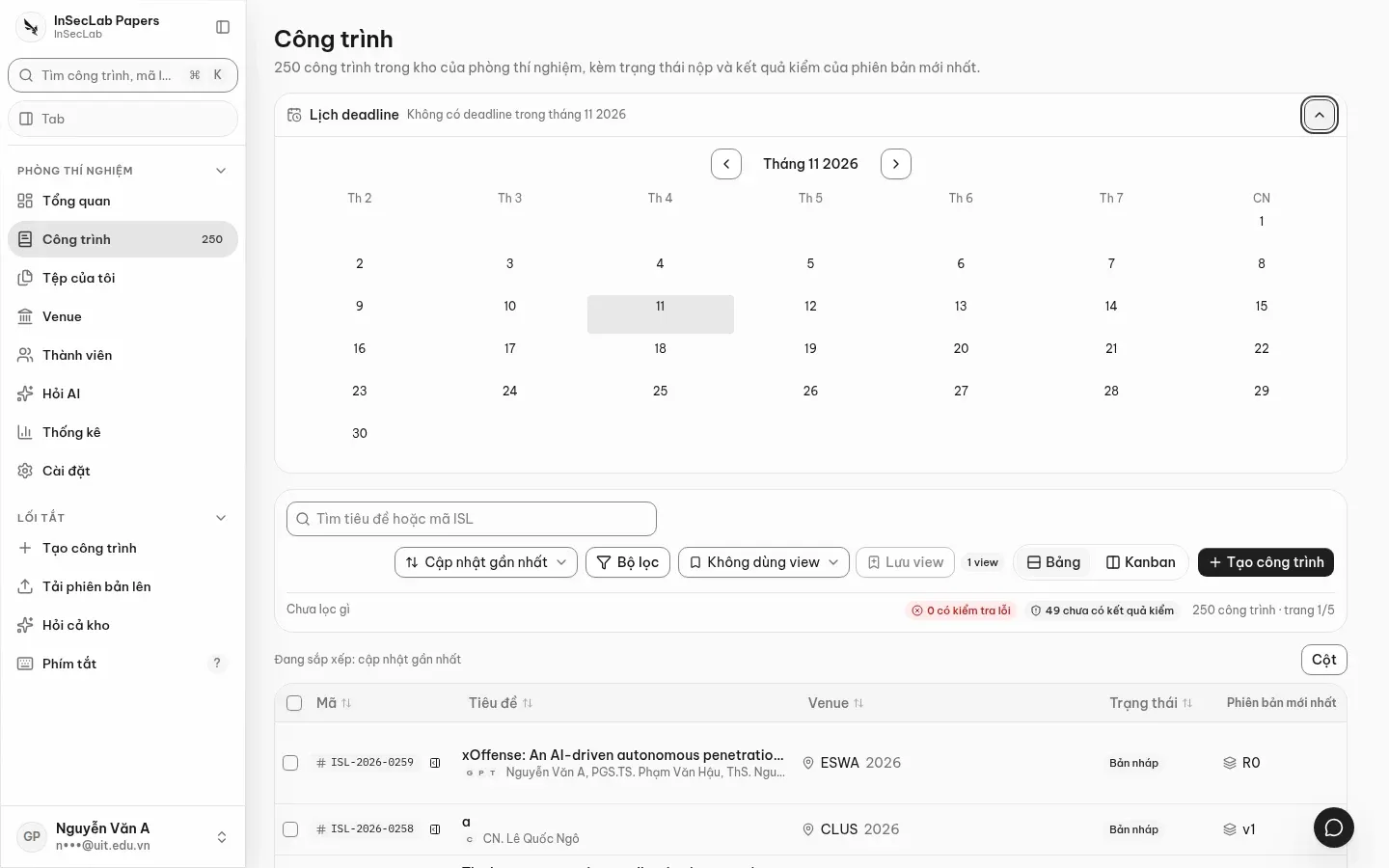
Section titled “Work window (tab drawer)”The Mở trong tab (Open in tab) button at the end of each work row opens a compact view of the work in a right-hand panel without leaving the list: code, venue, members, to-dos, versions and an Mở trang đầy đủ (Open full page) button. Open several works and each becomes a tab; Đóng tất cả tab (Close all tabs) is at the top of the panel.
Tabs also preview files: version files, files in My files, and check artifacts (PDF diff, logs). Links can be shared:
| Parameter | Opens |
|---|---|
?open=work:<id> |
A work |
?open=version:<id> |
A version |
?open=vfile:<id>&page=3 |
A version file, at page 3 |
?open=file:<id> |
A file in My files |
?open=artifact:<id> |
An artifact of one check run |
Join several tabs with commas. If you are not allowed to see something you get a not-found message; the file name is not revealed.
Keyboard shortcuts
Section titled “Keyboard shortcuts”Press ? to see all shortcuts.
| Key | Action |
|---|---|
⌘K / Ctrl+K, / |
Open the command palette |
⌘J / Ctrl+J |
Open or close Ask AI |
M, ⌘B |
Collapse or expand the sidebar |
G then D / C / V / M / A / S |
Go to Overview / Works / Venues / Members / Ask AI / Settings |
? |
List of shortcuts |
On a phone
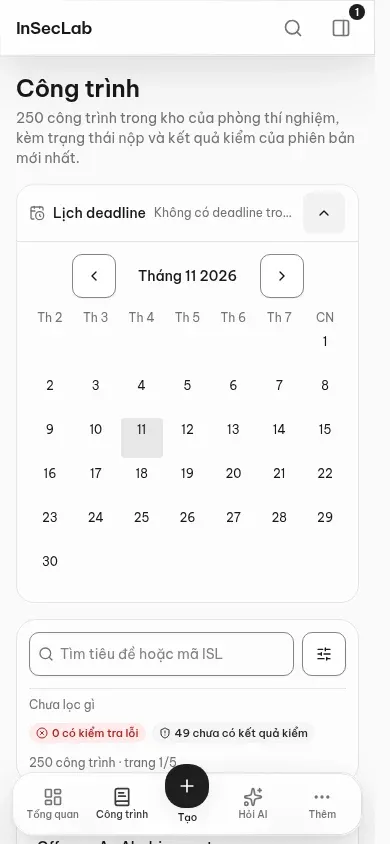
Section titled “On a phone”Below 768px the sidebar becomes a bottom bar: Tổng quan · Công trình · Tạo · Hỏi AI · Thêm (Overview · Works · Create · Ask AI · More). Thêm (More) opens a bottom sheet with all navigation, your account, light/dark and the accent colour. The works list turns into cards, filters move into a bottom sheet, and the work page has a sticky action bar at the bottom.
Help inside the app
Section titled “Help inside the app”Every page of the app has a Hướng dẫn (Guide) button at the right of the title (on a phone only the question-mark icon remains). It opens a two-item menu: Hướng dẫn từng bước (Step-by-step guide) shows the steps for that exact page in a right-hand panel, and Đọc bài hướng dẫn đầy đủ (Read the full guide) opens the matching article on this docs site in a new tab. Hướng dẫn sử dụng (User guide) in the Shortcuts group (on a phone: under Thêm) opens the docs home page; the sign-in, 2FA and invitation pages have a guide link right below the form.
dat day du dong doc