

Works list
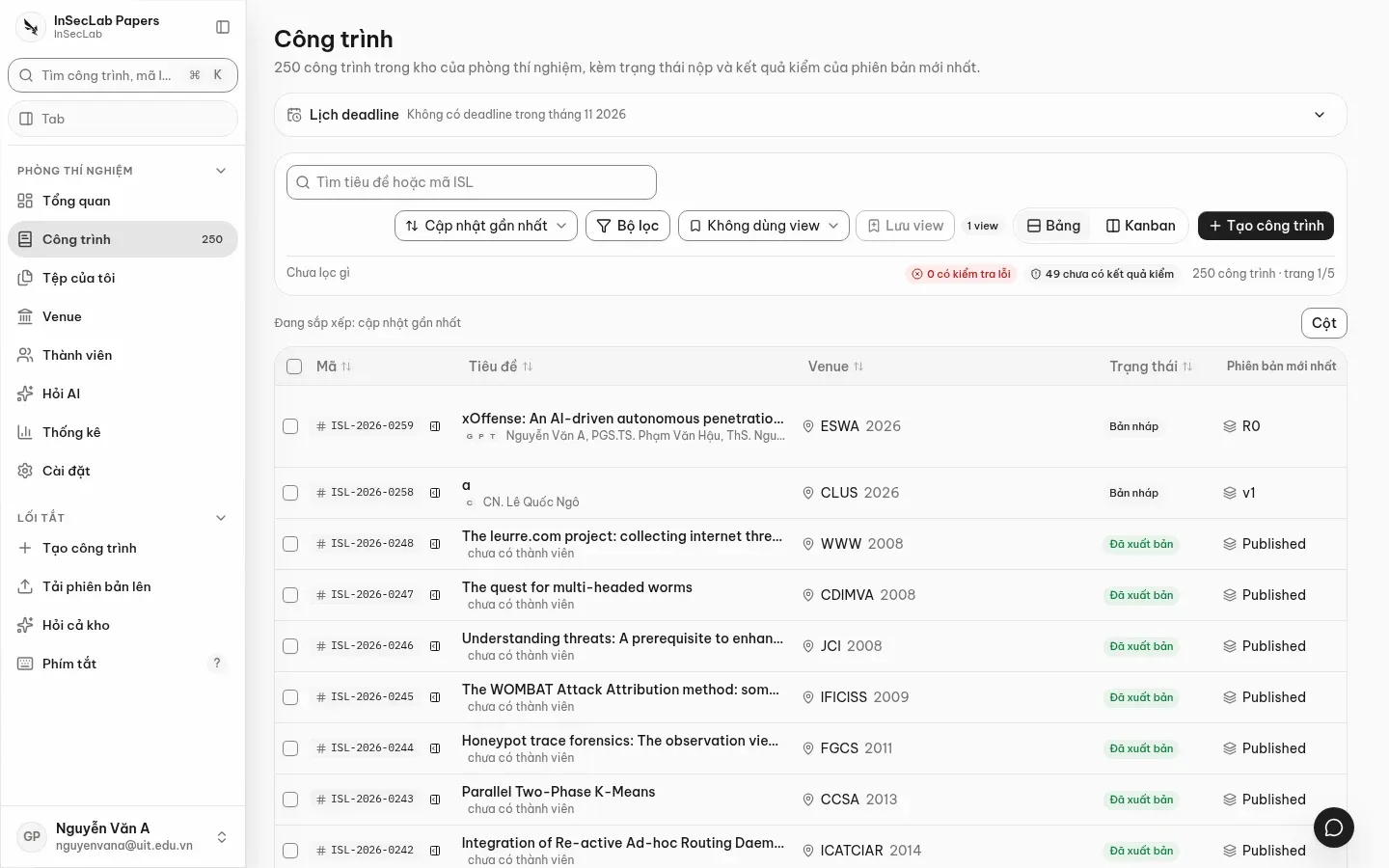
The Công trình (Works) page (/app/works) lists every work you can see, with the status of its submission and the check results of its latest version. Filters live in the URL, so sending the link to a colleague shows them exactly the same view.
Search and filter
Section titled “Search and filter”- The Tìm tiêu đề hoặc mã ISL (Search title or ISL code) box: matches even when typed without diacritics.
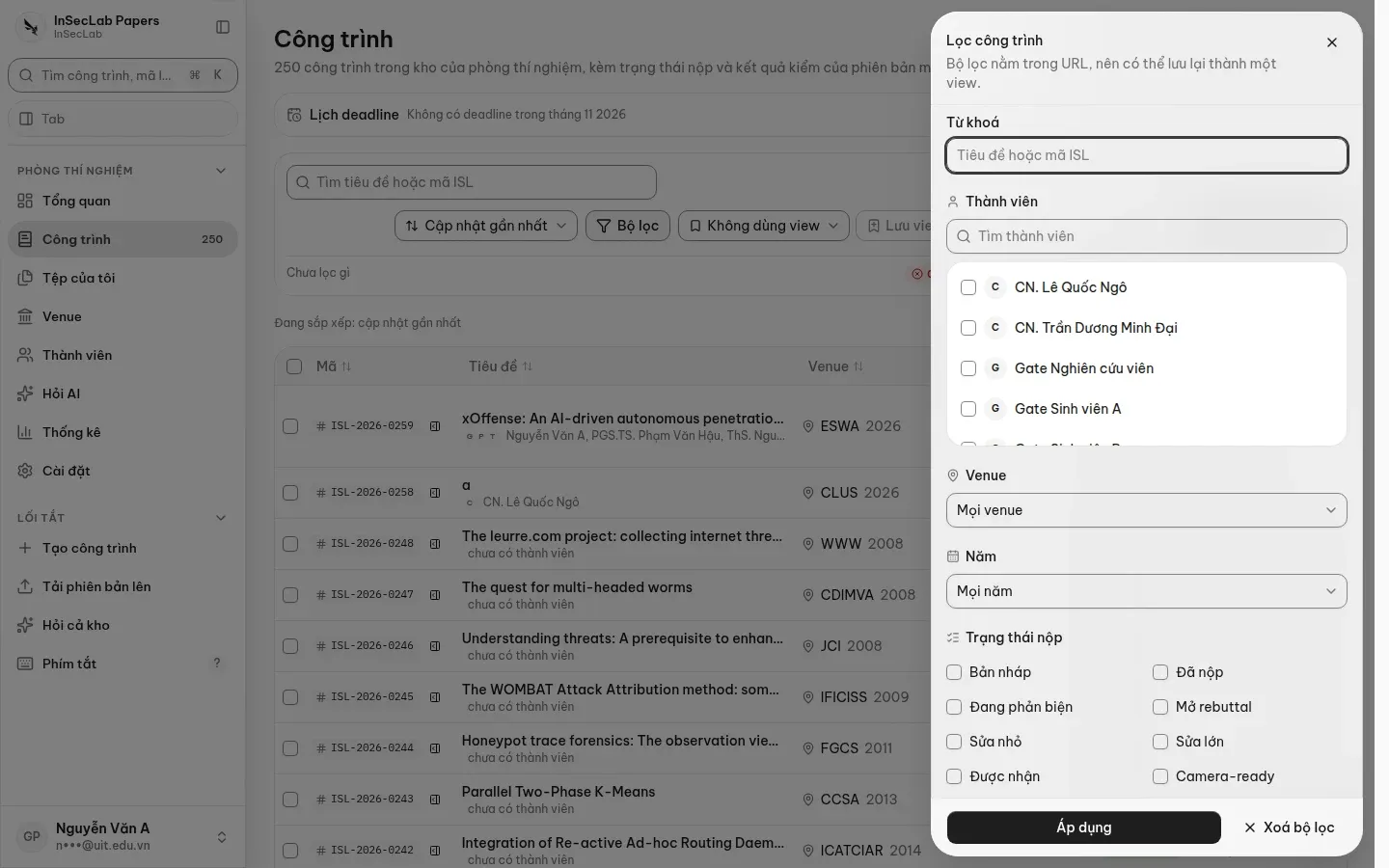
- Bộ lọc (Filters): member, venue, submission status, CORE rank, year. Options show counts and are grouped.
- Sắp xếp (Sort): most recently updated, newest, title, code.
- The quality strip above counts the works with failing checks and without check results among exactly the rows shown.
Save a view
Section titled “Save a view”Once the filters are set, click Lưu view (Save view) and give it a name. Your views appear in the View đã lưu (Saved views) menu; pick one to apply it again, delete it with the bin button.
Table and kanban
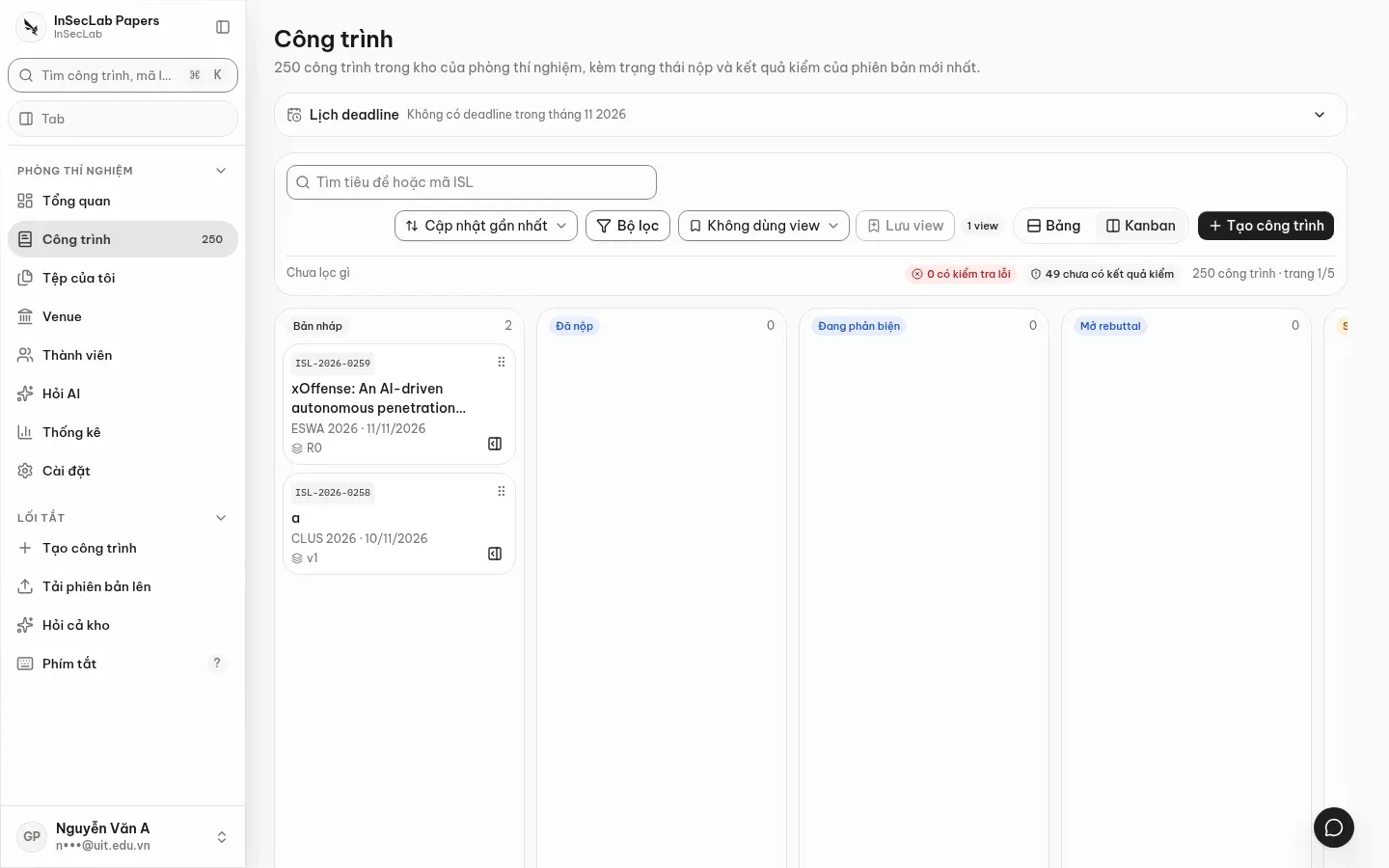
Section titled “Table and kanban”The Bảng / Kanban (Table / Kanban) button in the toolbar switches the layout.
- Table: the Cột (Columns) button chooses visible columns; hover a truncated title or venue to see it in full. Tick several rows to copy the
ISL-…codes or open tabs for the selected rows. 50 rows per page, with a page-number box to jump to any page. - Kanban: each column is a submission status (Bản nháp/Draft, Đã nộp/Submitted, Đang phản biện/Under review, Mở rebuttal/Rebuttal open…). Drag a card to another column to change its status; this needs the status-transition permission and every change is written to the audit log.
Deadline calendar
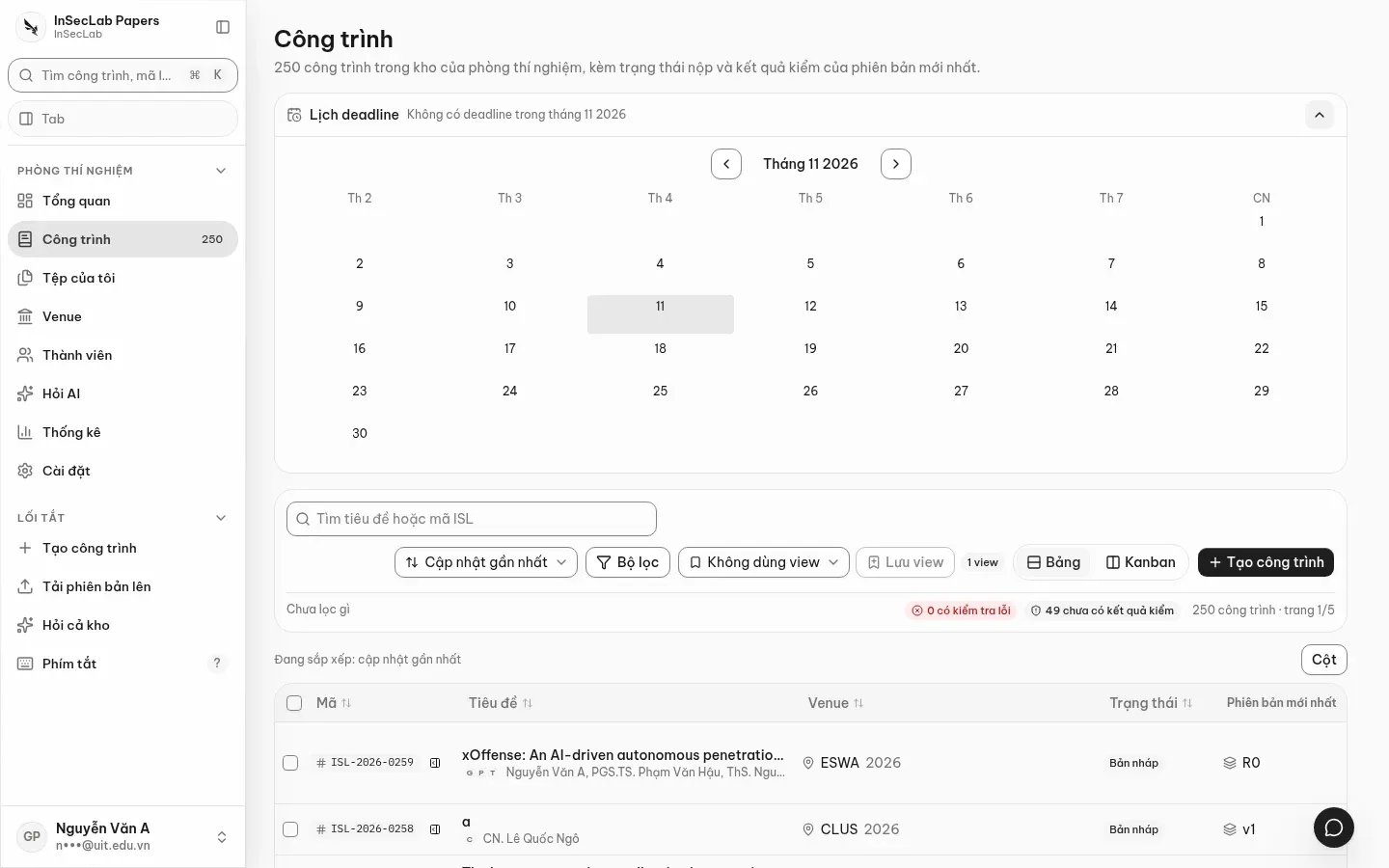
Section titled “Deadline calendar”Click Lịch deadline (Deadline calendar) above the list to open a monthly calendar with submission and camera-ready deadlines.
On a phone
Section titled “On a phone”The list shows cards; the filter button opens a bottom sheet with sorting, filters, saved views and the layout choice.
Create a new work: Create a work from files.
de da dang